Home users
Understand whether a noisy, slow or hot drive needs attention before family photos and documents become the test case.
Hard Disk Sentinel guide hub
HardDiskSentinel turns SMART data, temperature history, health percentage, bad sectors and performance changes into a clear action plan for HDDs, SSDs, NVMe drives, external disks and NAS storage.
A drive can look normal in Windows while reallocations, heat, weak sectors or write wear are already reducing its margin. The goal of this site is to help you read the signals early and respond calmly.
Understand whether a noisy, slow or hot drive needs attention before family photos and documents become the test case.
Translate health percentages, SMART attributes and surface-test results into plain next steps for clients.
Create simple routines for workstations, backup disks, USB enclosures and shared storage.
What it helps you understand
Hard Disk Sentinel is strongest when you treat it as an early-warning system: observe the trend, confirm the problem, protect the data, then repair or replace with evidence.
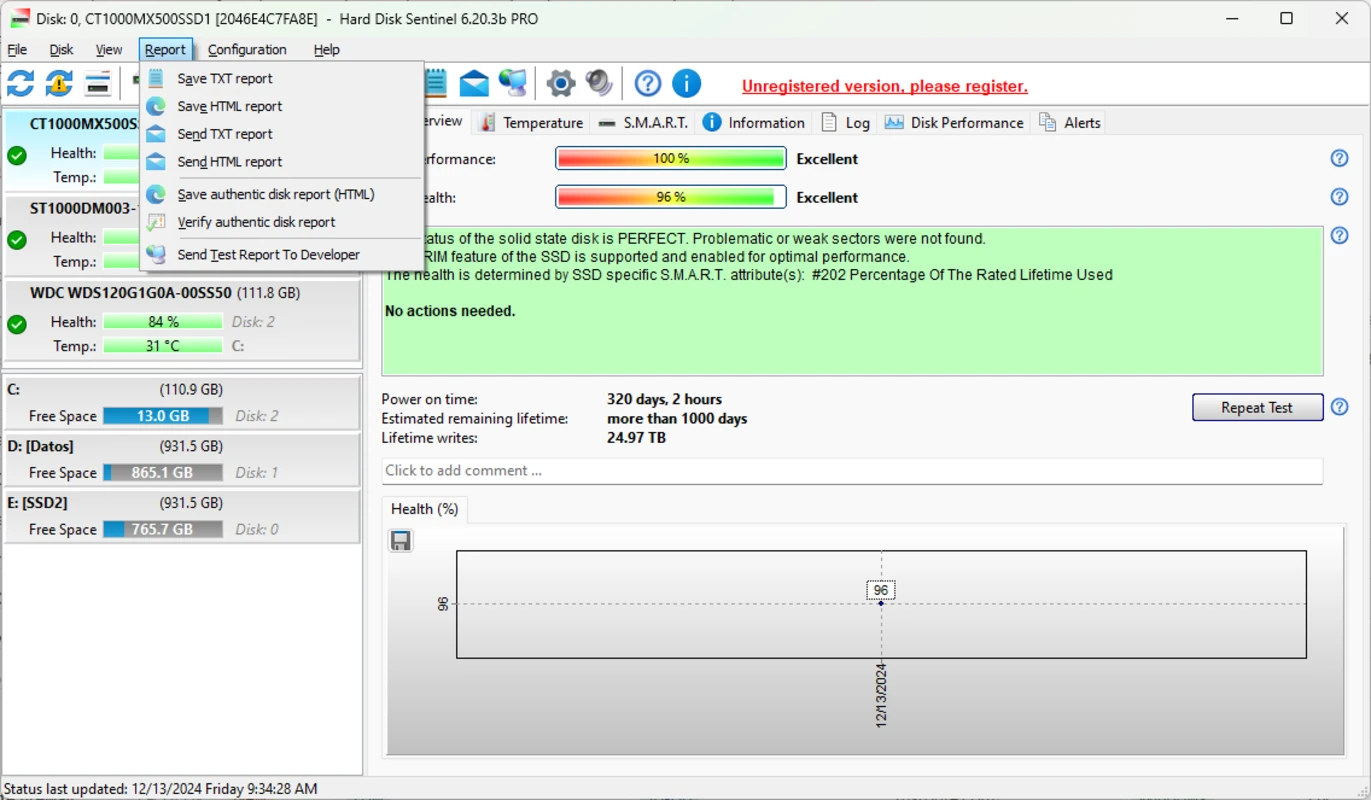
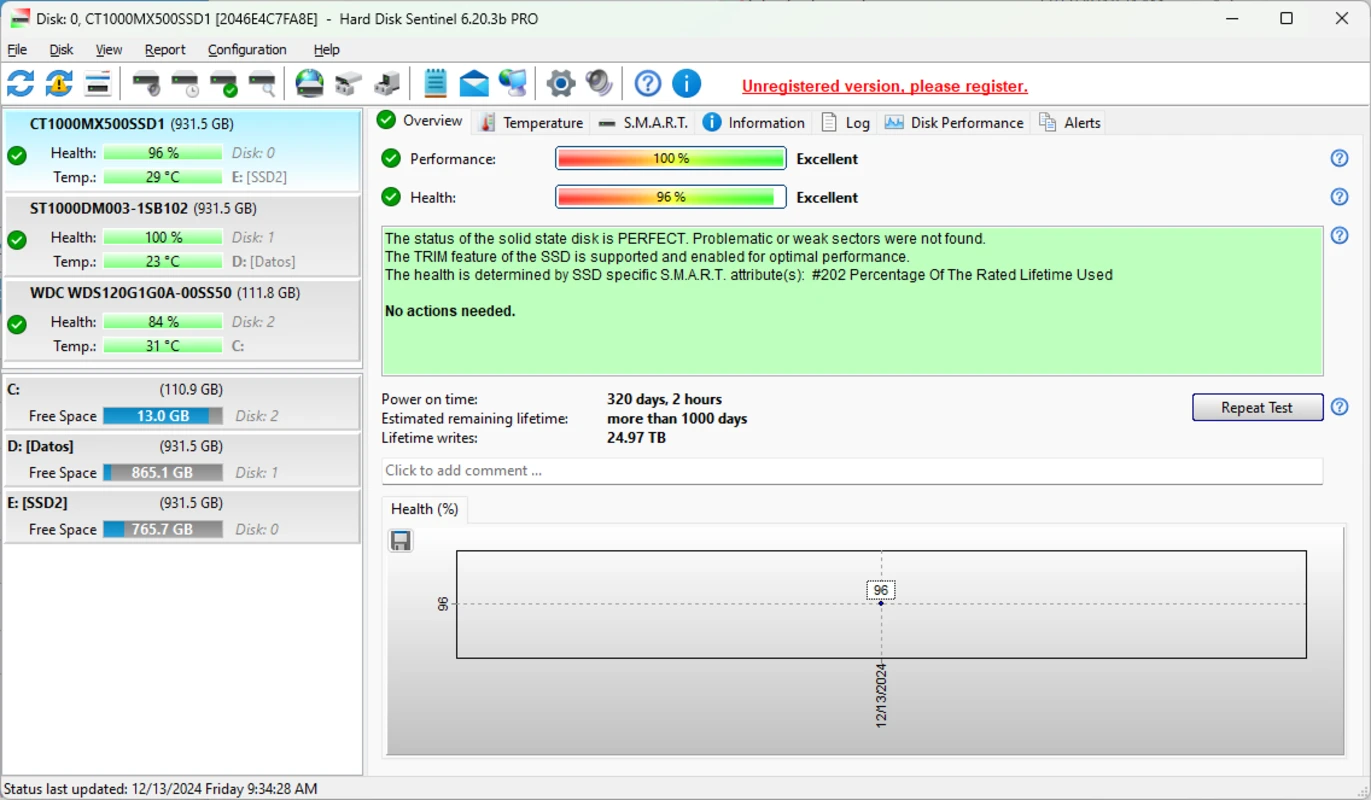
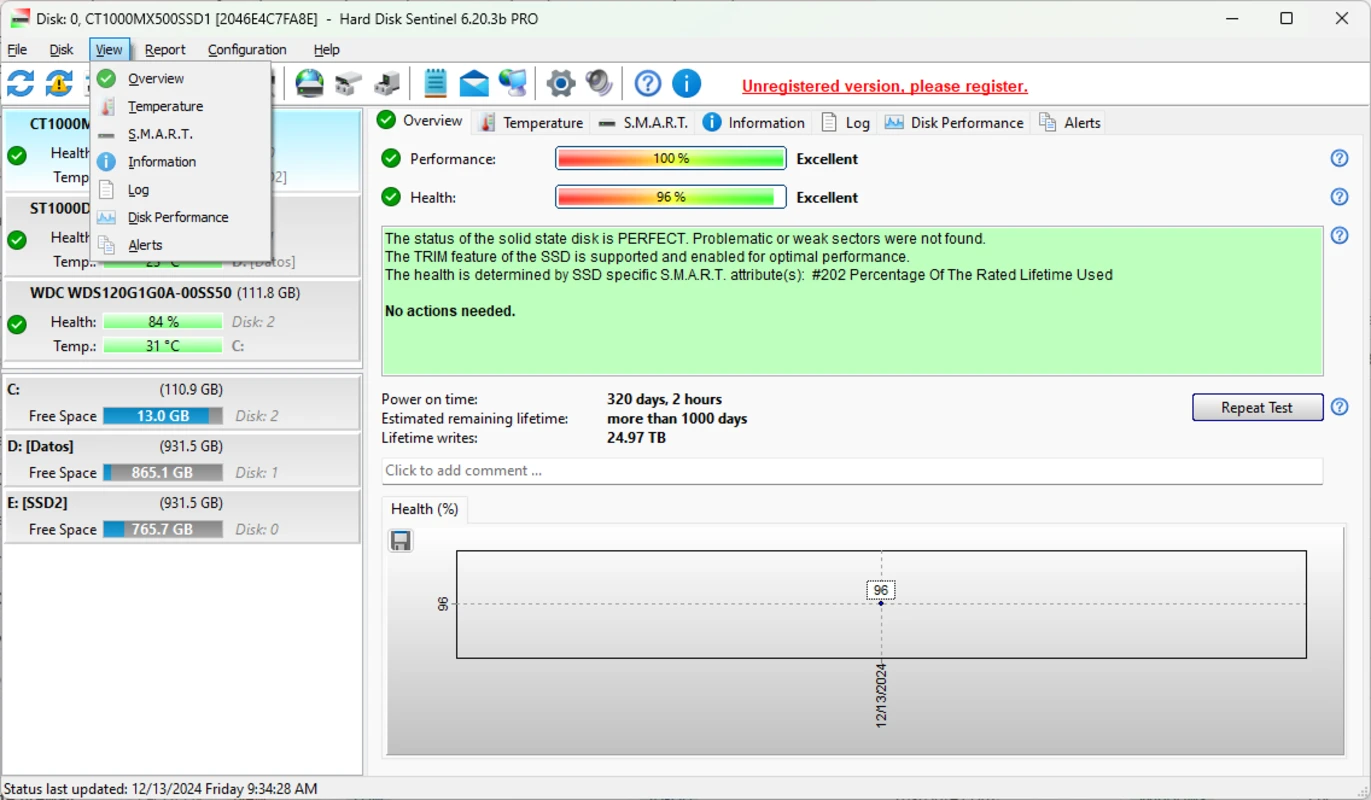
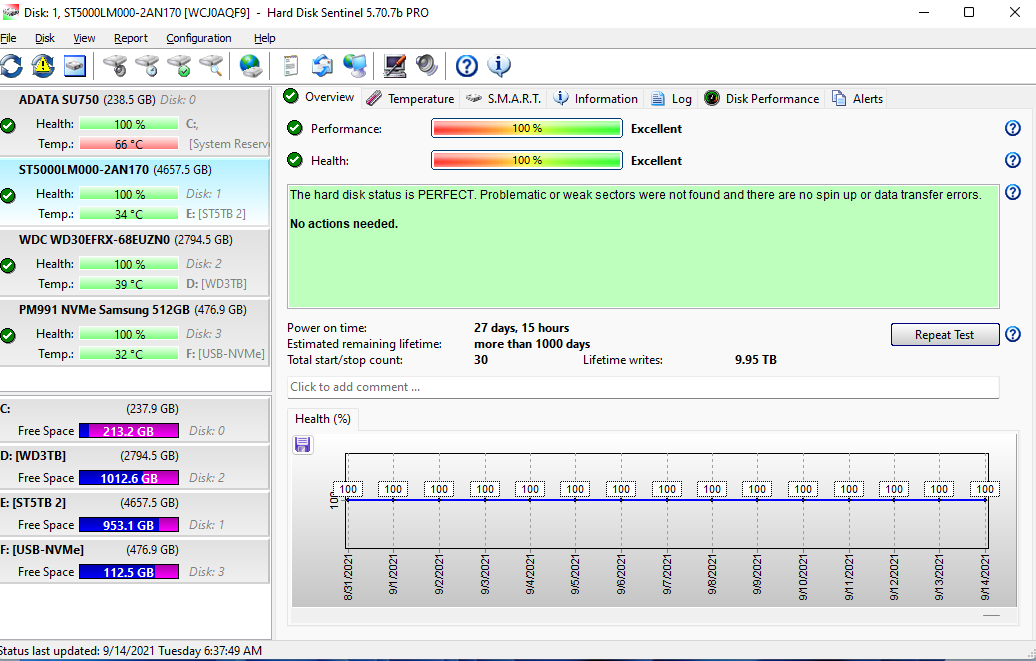
A single score gives you a fast signal, while the detailed explanation tells you why the score changed and whether the next step is backup, testing or replacement.
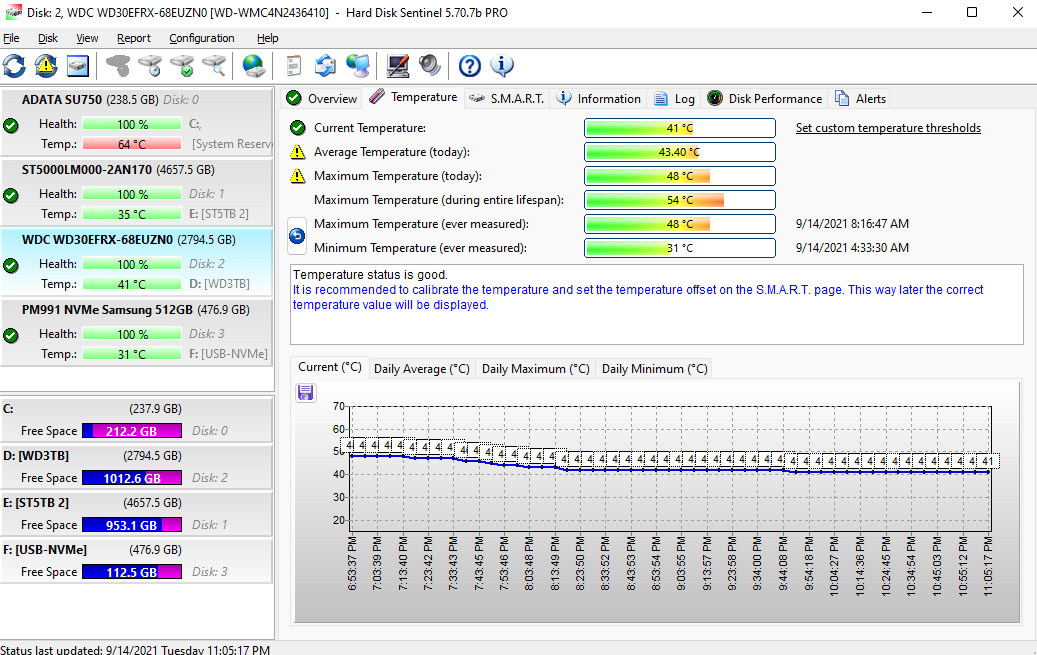
Current, average and maximum temperatures help you separate a one-time heat spike from a cooling problem that repeats every workload.
Raw attributes become useful when they are connected to symptoms such as bad sectors, pending sectors, CRC errors, wear level and power-on time.
Read tests, self-tests and surface scans help confirm whether a warning is stable, spreading or already threatening readable data.
USB bridges, enclosures, RAID controllers and network storage can hide drive details, so the site explains what to expect and what to verify.
Warnings only help if they trigger the right action. The practical rule is simple: protect data first, diagnose second, optimize last.
The safest workflow is boring on purpose. You do not need drama; you need a repeatable path that preserves data while you learn what the drive is telling you.
A drive that still passes a simple status check can already be telling a detailed failure story.
Check health, performance, temperature and the text explanation. Note whether the message mentions bad sectors, communication errors, wear or heat.
If health is dropping or unreadable sectors are mentioned, copy important data before running intensive tests. Testing can add stress to a weak device.
Use history, SMART changes and non-destructive tests to see whether the issue is stable, environmental or actively getting worse.
Healthy drives stay in service. Questionable drives move to non-critical use. Drives with worsening errors should be replaced, not trusted.
Windows often reduces storage health to a pass or fail answer. That can be too late. SMART attributes expose the story behind the answer: sectors being remapped, commands timing out, temperature rising, or NAND wear accumulating.
Continue reading ↓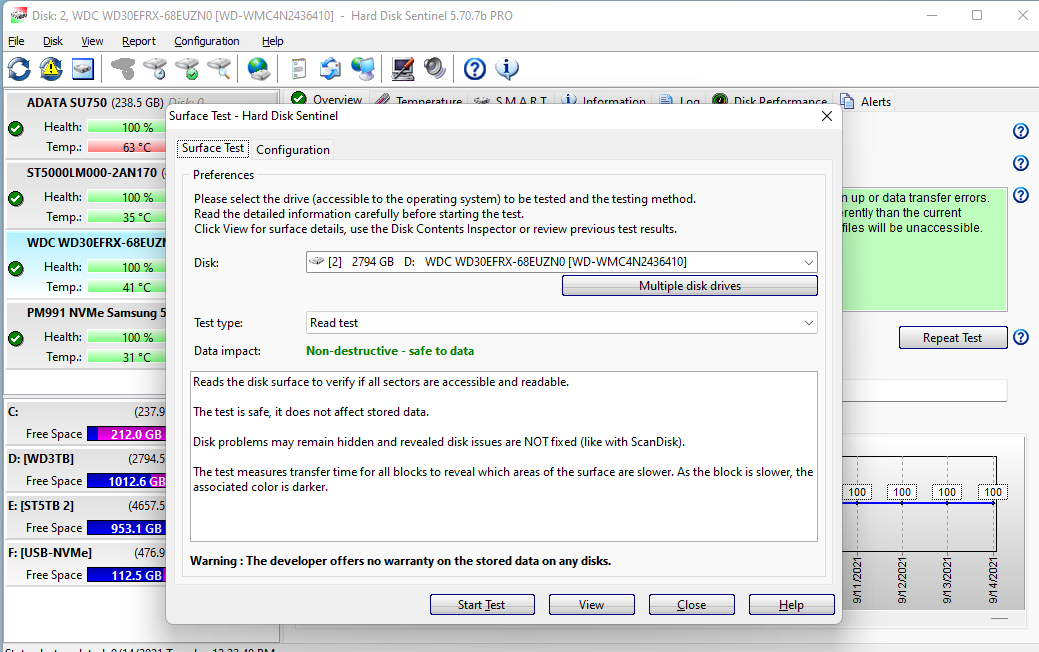
The exact attributes differ, but the questions stay consistent: Is the device readable? Is the media degrading? Is heat under control? Is the connection reliable? Is the data protected?
Watch reallocated sectors, pending sectors, seek behavior, noise, temperature and surface-test consistency.
Watch wear indicators, spare blocks, media errors, unsafe shutdowns, controller temperature and write volume.
Check whether the bridge or controller exposes SMART data correctly before trusting a green status alone.
Treat alerts as operations events: confirm backup freshness, identify the disk, replace cleanly and watch rebuild stress.
First inspection checklist
When a drive warning appears, the first pass should be calm and practical. These checks help you understand risk before you run heavy tests or change hardware.
Do not stop at the color or percentage. The message usually says whether the issue is heat, sectors, wear, communication errors or performance loss.
A safe-looking idle temperature can hide repeated peaks during backups, gaming, rendering or external enclosure use.
A stable old value is different from a value that keeps increasing. Trend direction is often more useful than one screenshot.
If warning signs are serious, protect irreplaceable files before scans, repairs, cloning attempts or replacement work.
Not every alert means the same thing. The best response depends on whether the evidence points to heat, media damage or the connection path.
Improve airflow, check enclosure placement, remove dust and watch whether the same workload still pushes the drive beyond a comfortable range.
Back up important data first. Then use non-destructive checks to see whether the count is historical, stable or actively growing.
Inspect cables, ports, USB bridges, power stability and controllers. Connection problems can imitate drive failure and still put data at risk.
Symptom map
Storage problems rarely arrive with one perfect clue. Combine user-visible symptoms with health history, SMART changes and temperature patterns before deciding what to do next.
Look for pending sectors, retries, falling performance or a temperature spike during the same workload. If the files matter, copy them before long tests.
Check cables, USB bridges, power delivery and controller logs. A connection problem can corrupt work even when the disk surface is still healthy.
Compare the timing with backups, games, renders or large transfers. A drop after stress deserves a backup-first response and a closer look at temperatures.
Mechanical symptoms are not the time for experiments. Reduce unnecessary use, protect recovery options and move important data only when it is safe to do so.
The best storage-health habit is light, regular review. You do not need to stare at graphs every day; you need a repeatable rhythm that catches changes early.
Check health percentage, current temperature and whether any device changed status since the last normal week.
Review maximum temperature, power-on hours, SSD wear indicators, error counters and backup-drive condition.
Before travel, client delivery, system migration or a large backup, confirm the source and destination drives are both healthy enough for the job.
Decision guide
A storage-health screen is only useful when it changes behavior. Use the status, trend and symptoms together to decide whether to keep working, monitor closely or stop and protect data.
Keep normal backups running, check temperature history occasionally and document the baseline so future changes are easier to notice.
Prioritize a fresh backup, avoid unnecessary stress, capture the report and investigate whether the cause is heat, connection trouble or media wear.
Stop using the drive for new work, copy critical files first and plan replacement or recovery before experiments make the situation worse.
You do not need to be a storage engineer to understand the most important signals. These short definitions make the rest of the guides easier to read.
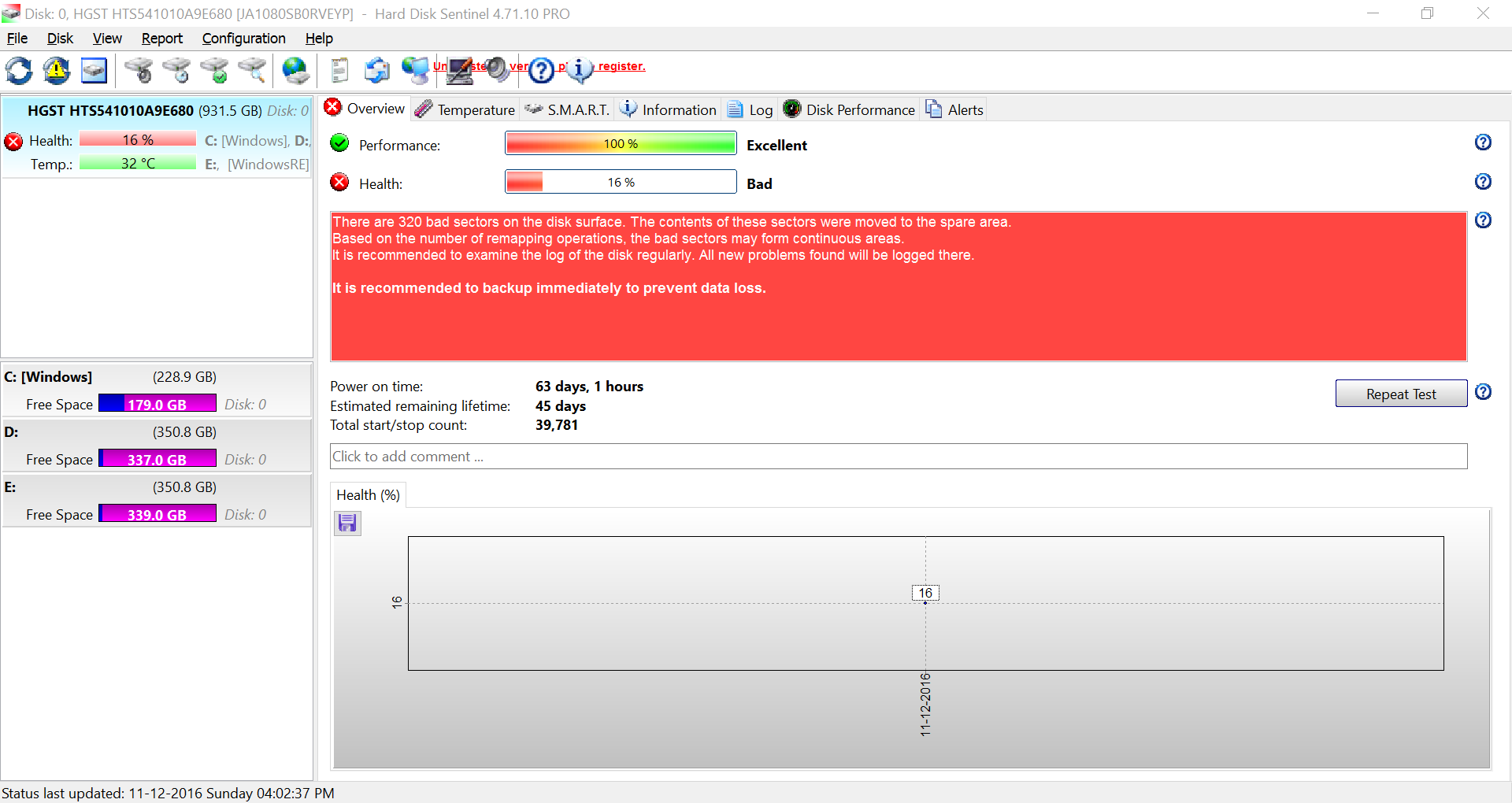
Areas the drive stopped trusting and replaced with spare space. A growing count is a stronger warning than an old stable count.
Areas the drive is unsure about. They matter because data may still be difficult to read until the sector is confirmed or remapped.
Communication errors often linked to cables, ports, enclosures or controllers. They can look like drive trouble even when the media is not the root cause.
An SSD indicator that estimates how much write endurance has been consumed. Trend and model context matter more than one raw number.
Data protection plan
When health is uncertain, the goal is not to prove a theory first. The goal is to reduce the chance that a routine test, reboot or copy job turns a warning into data loss.
Start with work projects, photos, documents, databases, archives, licenses and anything that cannot be downloaded again.
Move the most valuable data first instead of spending hours on low-value files while the drive is still uncertain.
A backup target should be healthy too. Open sample files, check free space and avoid copying critical data to another questionable disk.
Mistakes to avoid
Most bad outcomes come from panic, delay or unnecessary stress. These are the patterns to avoid when the drive is still readable but suspicious.
A full scan can be useful later, but it can also stress a marginal device. Save important data first when warnings mention sectors or read problems.
CRC and disconnect warnings are not harmless noise. Bad cables, hubs and enclosures can interrupt writes and create new file-system damage.
A drive with warnings should not be the only place important data exists. Monitoring helps you decide, but it does not replace redundancy.
Drive-health monitoring matters in different ways depending on the work. The same warning can mean a personal backup task, a client service ticket or a production-risk decision.
Protect code, notes, virtual machines and coursework by checking drive condition before deadlines, migrations and operating-system upgrades.
Large video, audio and design projects put sustained load on storage. Temperature history and backup-drive health are especially important.
Game libraries can be reinstalled, but save files, captures and mod folders may not be easy to rebuild. Watch SSD temperature and write-heavy update cycles.
A slow or failing disk can become downtime. Regular checks help teams plan replacement before spreadsheets, mail archives and project folders are interrupted.
Signals worth tracking
A one-time value can be misleading. Better decisions come from watching how health, temperature, errors and workload context move together over time.
A stable health score is different from a score that drops every week. Direction matters because it shows whether risk is increasing.
Maximum temperature catches stress periods that users often miss, especially during backups, gaming, rendering and external-drive transfers.
Sector, media and communication counters become more useful when compared across days or weeks instead of treated as isolated numbers.
A warning after a cable change, enclosure swap or heavy copy job tells a different story from a warning that appears during idle use.
The examples below are composites based on common support patterns: the value is in the decision process, not in pretending every drive behaves the same way.
The laptop was slow, but the key clue was not speed. It was a rising pending-sector count that appeared before the user lost access to project files.
A backup disk looked fine until temperature history showed it was overheating every nightly copy. Cooling fixed the symptom before replacement became urgent.
The NAS warning mattered because the array rebuild would stress every remaining disk. The team verified backups before touching the failed bay.
These are the questions people usually ask when a disk-health warning appears for the first time.
It is a simplified risk signal based on detected problems and device telemetry. A high score is reassuring, but the explanation text matters because it tells you what is affecting the score. If the score drops, compare it with SMART changes and recent symptoms.
Back up important data first. Bad sectors mean the drive has already found areas it could not reliably use. After the backup, run non-destructive tests and watch whether the count increases.
If the warning suggests active media problems, back up first. Intensive tests can stress a weak drive. After important data is safe, testing becomes useful and much less risky.
Each article opens as a separate page with deeper guidance for searchers, technicians and users trying to protect data.
A practical health-check routine for HDDs, including symptoms, SMART clues and what to do before running heavier tests.
Continue reading ↓Learn what SSD health means, which wear signals matter and why temperature and spare blocks deserve attention.
Continue reading ↓Slow access, missing files, odd noises and bad sectors all tell a different part of the failure story.
Continue reading ↓Start here
Independent guides for HDD, SSD, USB/NAS, and alerts. Software itself is only from the official publisher.
Health score, pending sectors, and what to do before recovery becomes the job.
Open topic →
SSD health checks and temperature history that actually changes decisions.
Open topic →
External disks and NAS that hide SMART — what to verify anyway.
Open topic →
Warning levels first, then a backup you have actually restored.
Open topic →
Use the download section as your starting point, then return to the guides when a number, warning or graph needs interpretation.